Setup
How to Connect IP Camera to PC
Use the address you found to connect the camera to a Windows computer.
Read guide
Networking
Find the local IP address of a security camera using your router, manufacturer utility, Security Eye discovery, Windows network tools, or the camera app.
An IP address identifies the camera on your local network. A common private address looks like 192.168.1.120, 192.168.0.50 or 10.0.0.25. Your network may use completely different private ranges, so do not assume a camera's address from an example online.
The address can be assigned automatically by DHCP or configured manually. If DHCP is used, the address can change after a reboot or lease renewal unless your router reserves the same address for that camera.
This is usually the most reliable method when the camera and PC are already connected to the same network.
Do not change the router's WAN/public IP. You are looking for the camera's local address on your LAN.
Many camera brands provide a Windows utility that searches the local network for their devices. This can show the IP address, MAC address, model, firmware version and initialization status even when you do not know the address in advance.
Download such tools only from the manufacturer or another source you trust. A random “IP camera scanner” executable is not necessary when the vendor already provides a utility.
Security Eye can scan the local network for supported devices using UPnP and ONVIF discovery. Click Add Camera, choose Network (IP) camera, and review the devices found by the wizard.
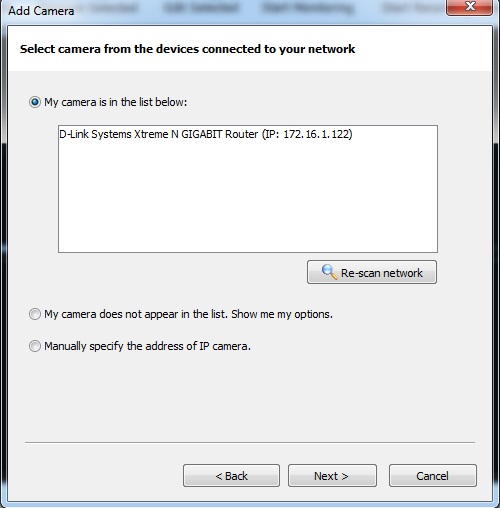
If the camera appears, the discovery result can save you from guessing. If it does not appear, that does not prove the camera is incompatible; discovery traffic can be blocked by guest Wi-Fi, VLANs, firewall rules or device settings. You can still use a known address through manual setup.
If the camera already works in its manufacturer app, look for Device Information, Network, LAN, IP Configuration or similar. Some apps display the local address directly.
If you can already open the camera's web administration page, the IP address may be visible in the browser address bar or network settings. Be careful not to confuse a cloud account URL with the local camera address.
Windows can help confirm which subnet your PC is using. Open Command Prompt and run:
ipconfigLook at the active network adapter's IPv4 address and default gateway. The gateway is often your router. If the PC is 192.168.1.25 with a typical /24 mask, many local devices will also be in 192.168.1.x, though networks can be configured differently.
The command below shows IP-to-MAC mappings that Windows has recently learned:
arp -aThe ARP table is not a complete camera scanner. It may omit devices the PC has not communicated with, and it does not identify every device by friendly name. Use it as a supporting clue rather than your only method.
If the camera receives its address by DHCP, the router controls the lease. It may give the camera the same address repeatedly, but that is not guaranteed unless a reservation is configured.
For a recorder that expects a stable camera address, consider creating a DHCP reservation for the camera's MAC address. This keeps address management centralized and avoids accidental collisions that can occur when manual static addresses are chosen without planning.
A newly reset camera can sometimes use a default static subnet that does not match your current network. In that case, the manufacturer's setup utility may let you change the camera address, or you may temporarily configure a PC Ethernet adapter in the camera's subnet for setup.
Do not randomly change the router or all of your PC networking just to match an unknown camera. First confirm the camera's documented default behavior and use the least disruptive method.
Test the camera locally, confirm the username/password, and then add it to your monitoring software. In Security Eye, use Connect & Test before finishing the camera wizard. Once the connection is reliable, set a predictable IP strategy and move on to recording, motion detection and notifications.
Security Eye is video surveillance software for Windows with IP camera and webcam monitoring, recording, motion detection, scheduling, notifications, and remote web access.